
The vault interface is designed to provide quick access to your documents, tools, and key actions. Understanding the layout will help you navigate efficiently and manage your content with ease.
Below is a breakdown of the main areas of the vault:
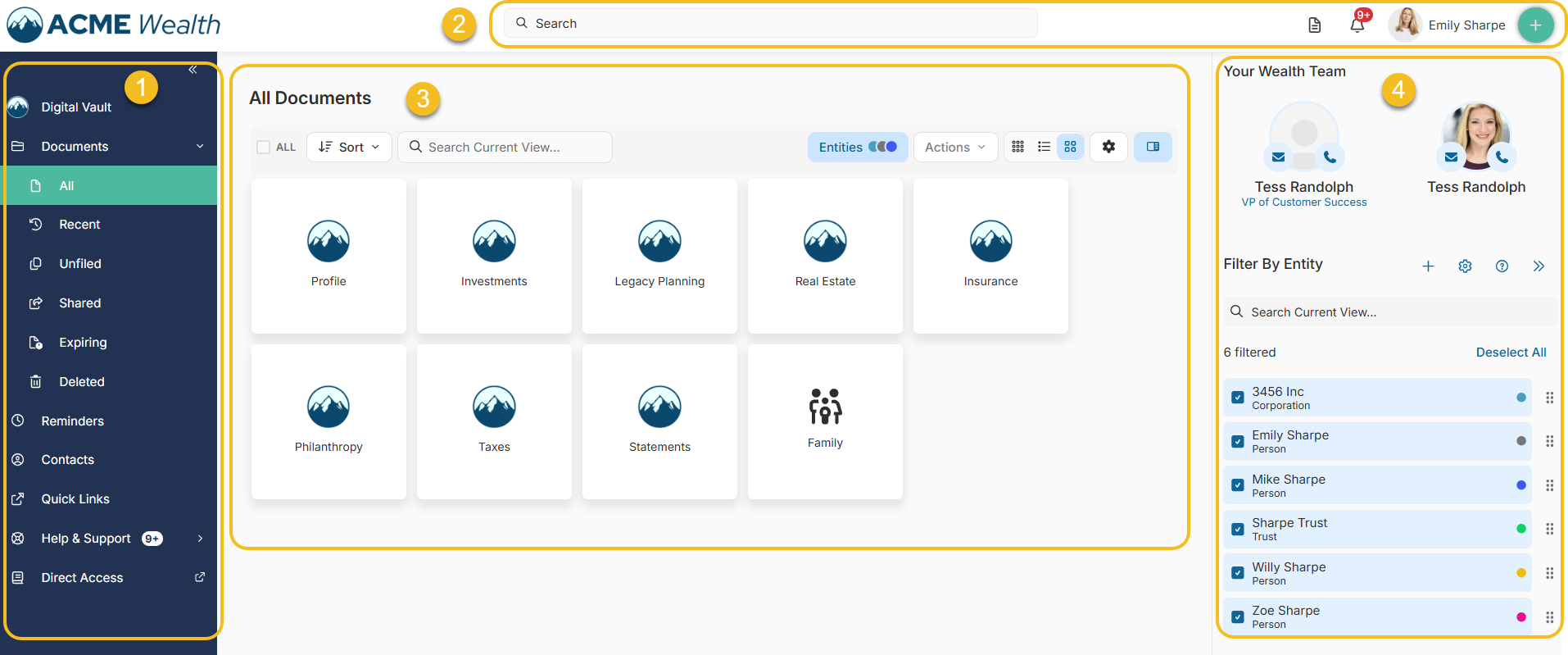
1. Main Menu (Left Panel)
The Main Menu is your primary navigation area. It allows you to quickly switch between different sections of your vault.
Key sections include:
- All Documents – View all folders and files
- Recent – Quickly access recently viewed or uploaded items
- Unfiled – Documents not yet organized into folders
- Shared – Files shared with you or by you
- Expiring – Track document lifecycle
- Deleted – Restore or Permanent delete documents
- Reminders – Manage tasks and deadlines
- Contacts – View saved contacts and manage collaborators
- Quick Links – Access frequently used shortcuts
- Help & Support – Access support resources
Tip: The left menu can be collapsed to maximize your workspace.
2. Top Ribbon (Header Bar)
The Top Ribbon provides quick access to global tools and account-level actions.
Key elements:
- Search Bar – Search across your vault content
- Open Files – Quickly access recent documents or actions
- Notifications (Bell Icon) – View alerts, updates, and activity
- User Menu (Top Right)– Access:
- Account Settings
- Preferences
- Accounts
- Vault Access
- Sign Out
- The Plus Button
- Upload Files
- Upload Folders with Files
- Create a Folders
- Create a Contact
This area remains accessible from anywhere in the vault.
3. Center Area (Workspace)
The Center Area is your main workspace where you interact with folders and documents.
What you’ll see:
- Folder or file icon/ list/tile view
- Ability to open folders and navigate deeper into your vault
Sub-Menu (Within the Workspace)
At the top of the center area, you’ll find a contextual action bar:
Common options include:
- Sort & Filter – Organize how content is displayed
- Search within current view
- Entities Toggle – Filter documents by entity
- Actions Menu – Upload, move, or manage files
- View Options – Switch between grid and list view
- Gear Icon – Hide Empty Folder and Columns from the List View
- Side Panel visibility – Adjust display preferences
4. Right Side Panel
The Side Panel provides additional context and filtering tools related to your current view. This are may change to also provide you with Entity Management, File Preview depeding on your actions
By default, the typical features:
- Your Team / Contacts – Quick access to key people *(If configured)
- Filter by Entity – Narrow down documents based on entity selection
- Search within filtered results
This panel helps refine what you see without leaving your current view.