
Your Account Settings allow you to personalize your experience, manage how you receive notifications, and keep your profile and security preferences up to date. Both Vault Owners and Collaborators can access and update their own settings at any time.
Before You Start
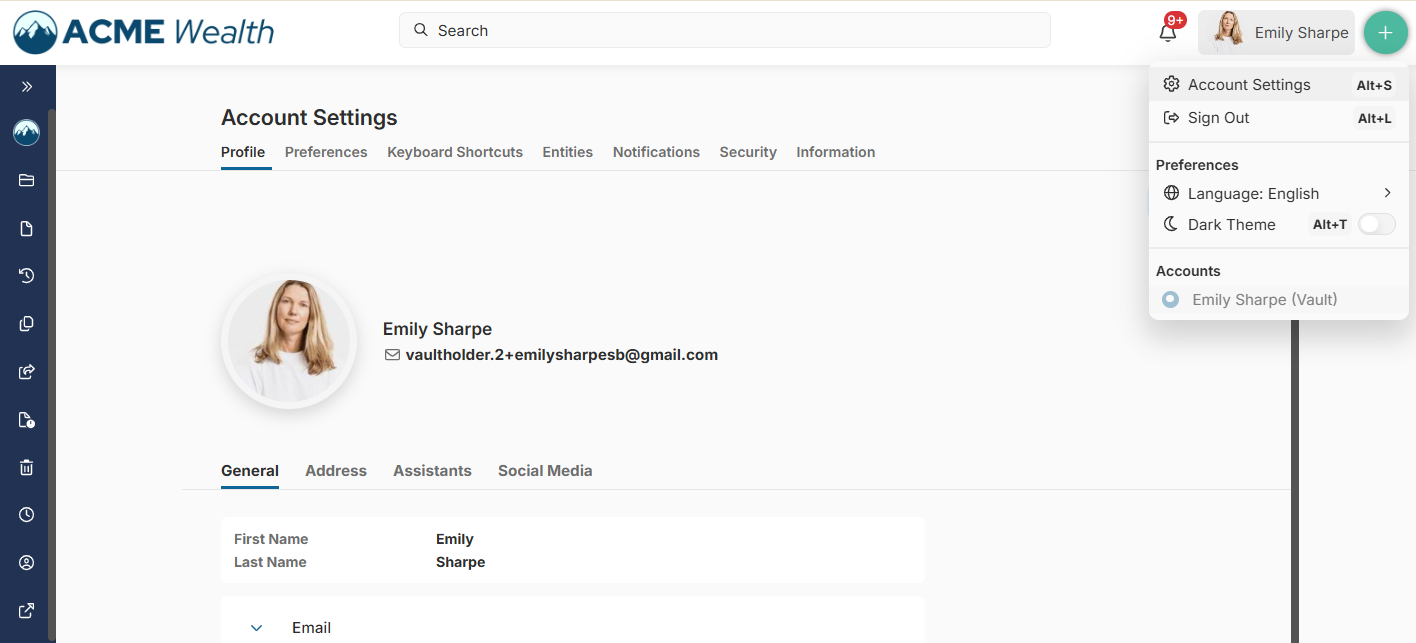
- As a Vault Owner, click on the vault name in the top-right corner and select Account Settings.
- If you are a Co-Owner or Collaborator and do not see your name in the top-right corner, you are likely inside a vault.
Click Return to Portal (top-left corner). Once you are back in the portal view, your name will appear in the top-right corner, and you can access Account Settings. 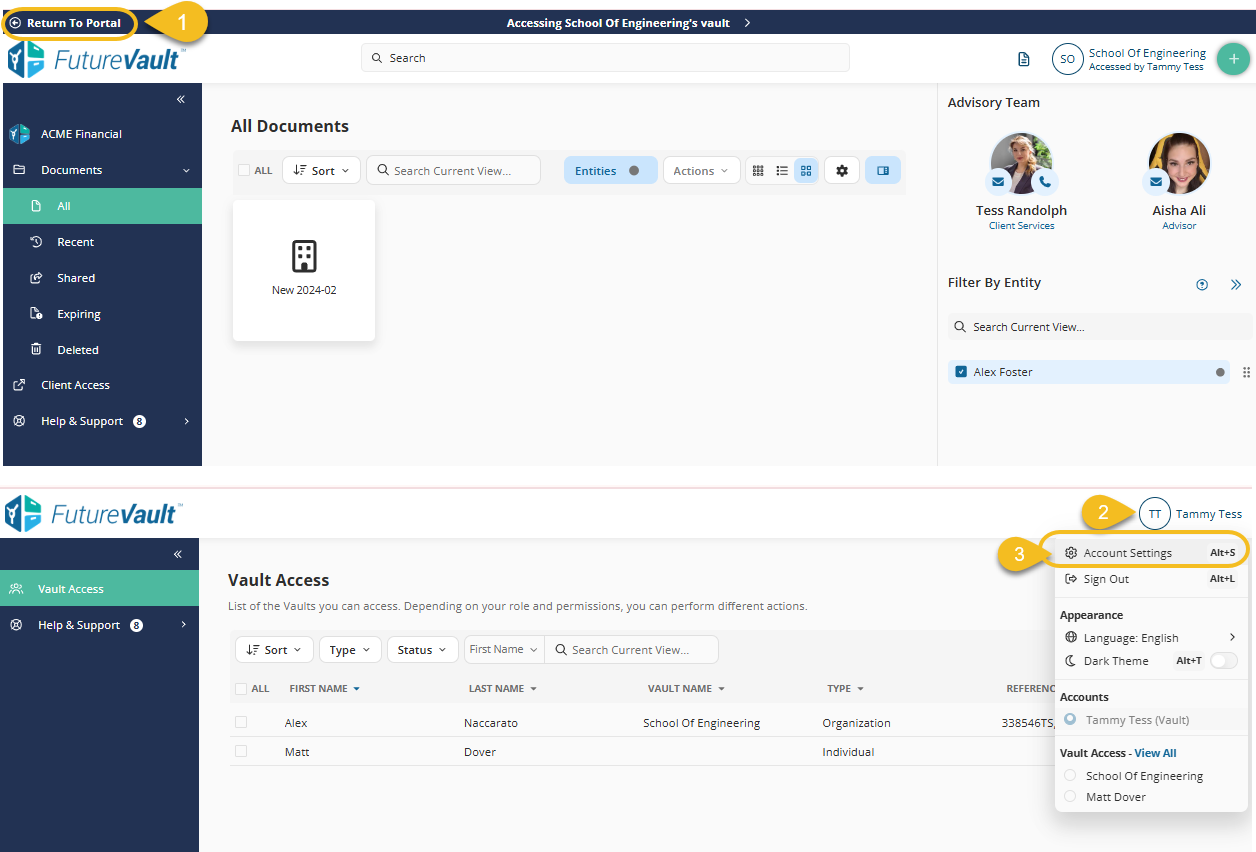
Step-by-Step Instructions
- Click your name in the top-right corner
- Select Account Settings
Account Settings Tabs Overview
Once inside Account Settings, you will see several tabs to manage different areas of your account:
Profile
Add or update your personal information, including your profile picture and contact details. This ensures collaborators and administrative users always have your most up-to-date information.
Preferences
Manage your display preferences, including:
- Default language - English or French
- Theme - Auto, Light Theme, Dark Theme
- Notification location - Choose where notification popups will appear
- Document view settings - Choose your folder and Files view - Icon View, List View, Title View
- Document Preview - Choose how the side panels behave when previewing a document.
- Entity Tagging Preferences - Choose how entities are applied when uploading documents (Ask every time / Automatic / Manual).
Keyboard Shortcuts
View available keyboard shortcuts to navigate more efficiently and perform quick actions within the vault.
Entities
Depending on your package, you may have access to entities. Use this tab to create, edit, or delete entities associated with your vault.
Notifications
Control how you receive updates:
Security
Manage your account security settings, including:
- Updating your login email
- Changing your password
- Viewing and managing active sessions
- Enabling Multi-Factor Authentication (MFA)
- Managing trusted and untrusted emails
Information
View:
- Storage assigned and usage
- Privacy Policy
- Terms of Service for your portal