
Signing out of your account helps keep your information secure—especially when using shared or public devices. With the introduction of multi-session access, you can now stay logged in on multiple devices at the same time and manage those sessions directly from your Account Settings.
Ways to Sign Out
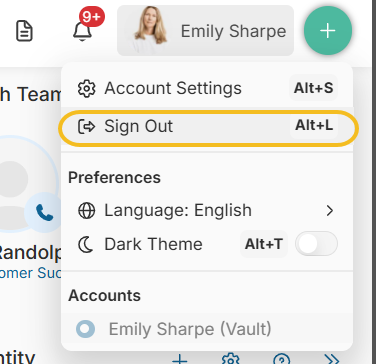
Option 1: Sign Out from Your Current Session
- Click on your name in the top-right corner of the screen
- Select “Sign Out” from the dropdown menu
You will be securely logged out from your current device.
Option 2: Sign Out from Other Active Sessions
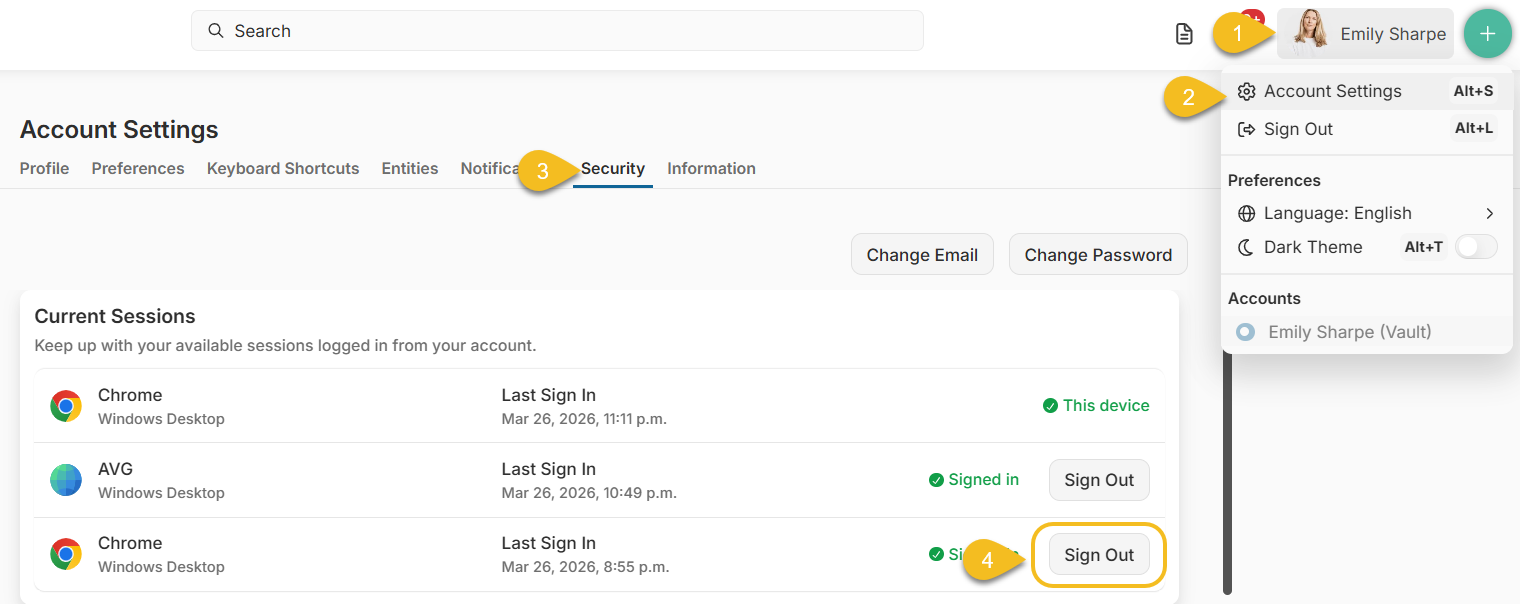
You can also manage and terminate sessions from other devices without needing to access them directly.
- Go to Account Settings
- Navigate to the Security (or Sessions) section
- Review your list of active sessions
- Click Sign Out in each of the open sessions.
Important Notes
- With multi-session enabled, signing out from one device does not log you out from other active sessions
- Use Session Management to view and control all devices where your account is currently active
- If you selected “Remember Me”, your session may remain active for up to 30 days per device, but you can force the log out from your Account Settings.
- Sessions may also end automatically after a period of inactivity
- You will be signed out if:
- You manually log out
- Your session is forcefully terminated (e.g., security action)
- Your browser cookies or cache are cleared