Roles: Vault Owner, Co-owner, Collaborator | Portal Type: All Portals
You can control how and when you receive notifications for activity in the vault. Notifications can be delivered within the platform (bell notifications) or via email.
Depending on your language preferences, you will receive notifications in English or French.
Before You Start
- You must have access to your Account Settings
- Collaborators and Co-Owners:
- If you do not see your name in the top-right corner, you are inside a vault
- Click “Return to Portal” (top-left corner) to access your personal settings
- Some notification options may vary depending on your role or permissions
Quick access to
Types of Notifications:
In-App / Bell Notifications
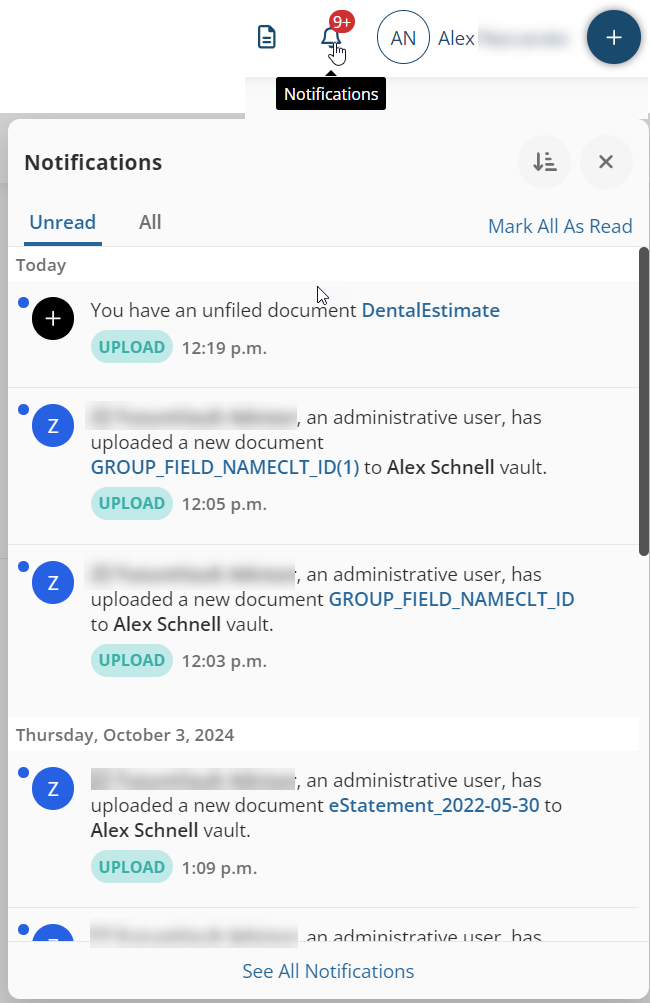
These notifications appear under the bell icon in the top-right corner of your vault.
- Provide real-time updates while you are logged in
- Include direct links to quickly access documents or actions
Note:
This option may not be available to all collaborators, depending on permissions and configuration.
Email Notifications
When enabled, you will receive email alerts for key activities in your vault. Available Email Notifications
- Inbound Email Attachments(Vault Owners only)
Receive an email when a document is sent to the vault via inbound email.
Both the vault owner and the sender are notified if enabled. - All Document Uploads
Receive an email whenever a document is uploaded to any folder in the vault. - Unfiled Document Uploads(Premium vaults only – Vault Owners)
Receive notifications for documents uploaded directly to the Unfiled section.
Collaborator Experience
- Collaborators may not have access to in-app (bell) notifications
- The primary email notification available to collaborators is:
- All Document Uploads
Receive an email when documents are uploaded to the All Documents section or any folder within it
- All Document Uploads
How Email Notifications Work
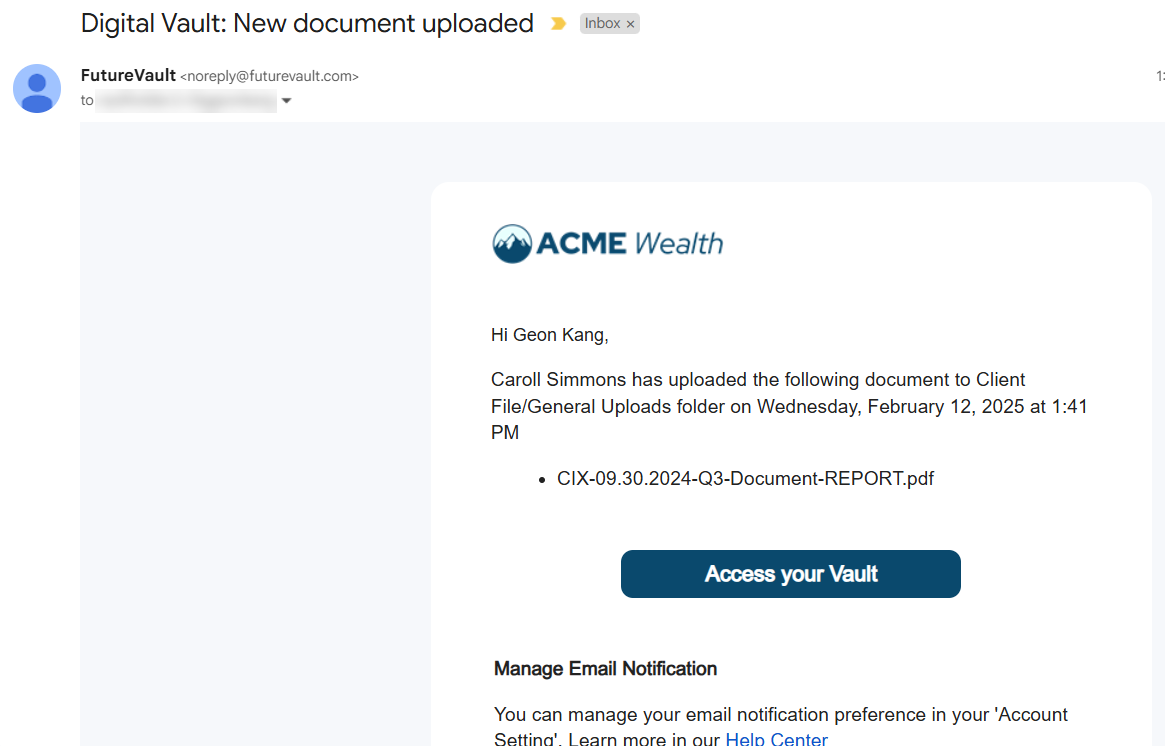
- Emails are sent from: noreply@futurevault.com(unmonitored inbox)
- The email includes the file name and location (depending on your company's template)
- Click “Access your Vault” to log in and view the document
Tip! To ensure delivery, add noreply@futurevault.com to your safe sender or whitelist.
SAMPLE:
Steps to Enable or Disable Notifications
Managing notifications is a straightforward process:
Step 1: Click on the top-right corner and click on 'Account Settings'
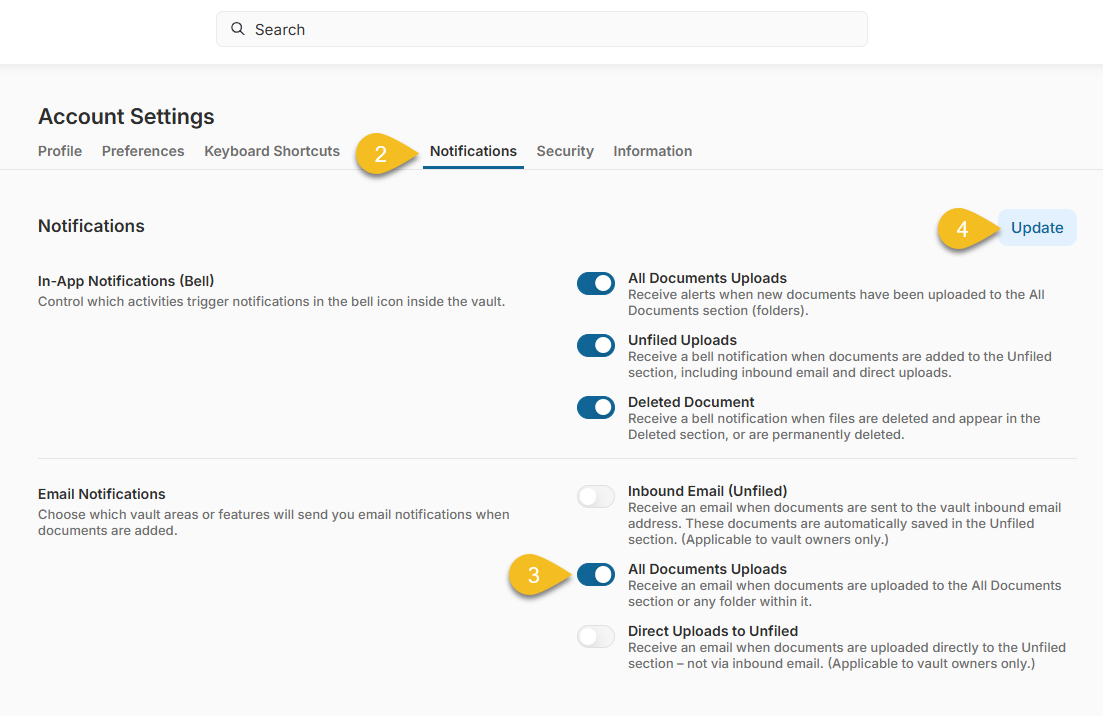
 Step 2: Click on Notifications
Step 3: Toggle ON and OFF
Depending on your preference, update each section for In-App Notifications (Bell) or Email Notifications.
Step 4: Click Update