
Roles: Vault owner, Co-owner, Collaborators | Portal Type: All Portals
You can update the email address used to log in to FutureVault from your Account Settings. This process includes password confirmation and a PIN verification sent to your new email address.
Before You Begin
- Your account must be activated
- You must know your current password
- You must have access to the new email inbox
Important:
- Only the account owner (Primary User) can complete this action
- If you are an Administrator or Representative, this option may be restricted—contact your Head Office
Step-by-Step Instructions
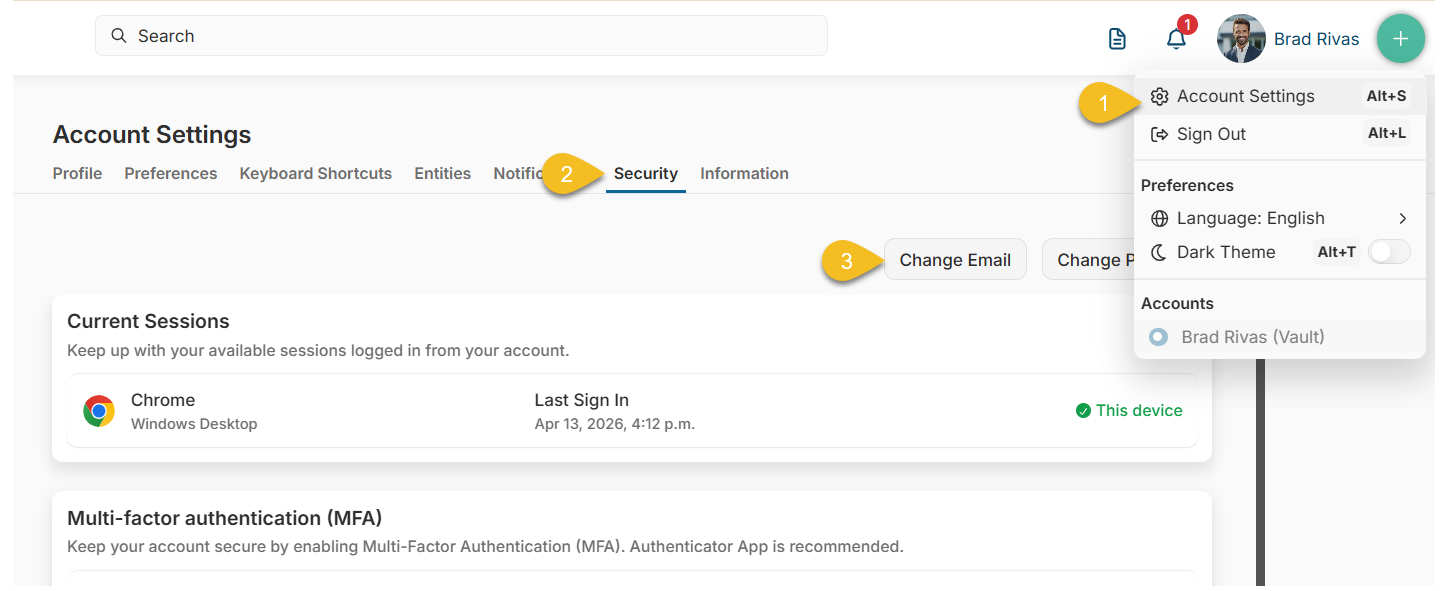
Step 1: Open Account Settings
- Click your name in the top-right corner
- Select Account Settings
Step 2: Go to the Security Tab
- Click the Security tab
Step 3: Start Email Change
- Click Change Email
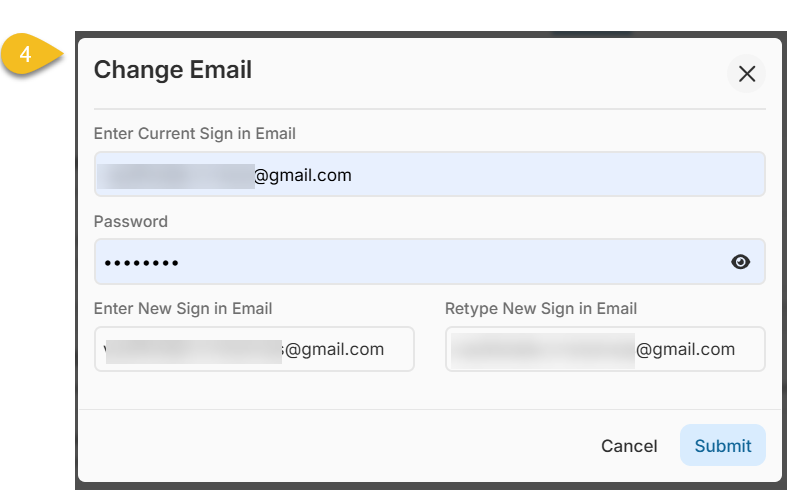
Step 4: Enter Email Details
- Enter:
- Your current email
- Your password
- Your new email
- Re-type your new email to confirm
- Click Submit
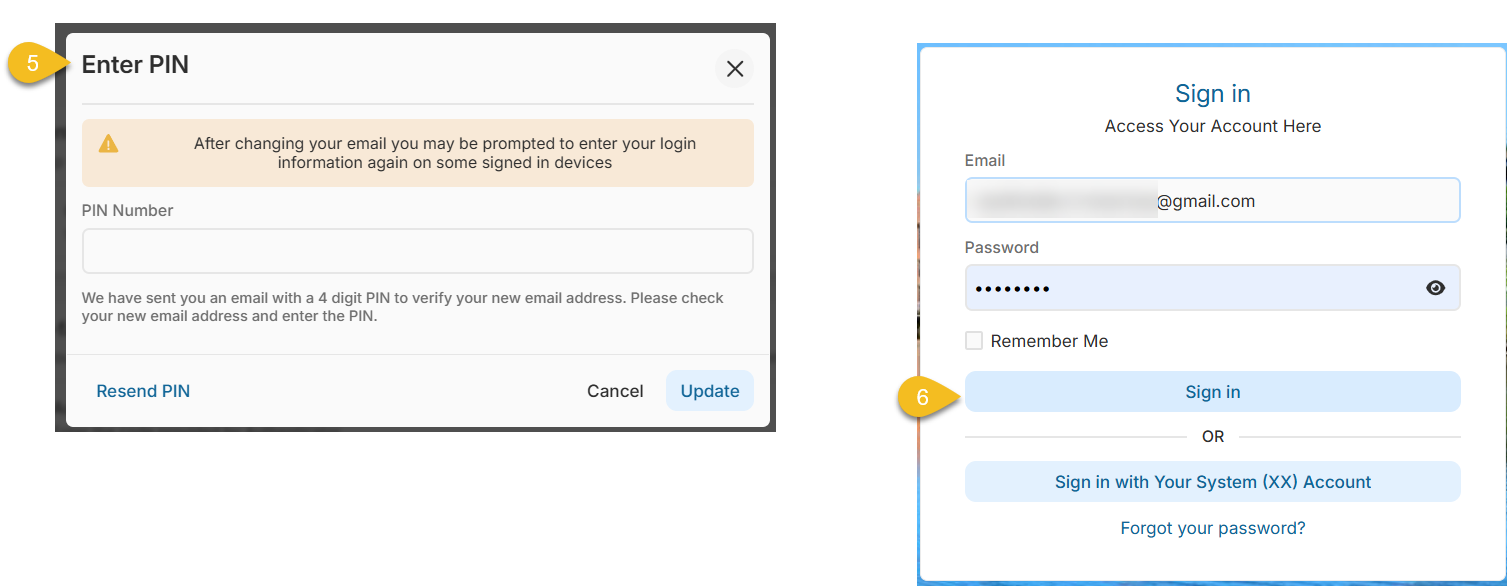
Step 5: Verify with PIN
- A 4-digit PIN will be sent to your new email
- Enter the PIN in the verification window
- Click Update
Notes:
- The PIN expires after 60 minutes
- You can click Resend PIN if needed
- You may be prompted to re-authenticate on some devices after this change
Step 6: Log Back In
- You will be automatically logged out
- Log in again using:
- Your new email
- Your existing password
Important Behaviour Notes
- The email change is only completed after successful PIN verification
- This update applies to your login across all vaults you can access
- Saved credentials or autofill in your browser may still show the old email—update if needed
- If using SSO (Sign in with your system), your email may be managed externally and cannot be changed here
Special Cases & Troubleshooting
- Cannot access your current email or forgot your password?
- If you no longer have access to your current email address and cannot recall your password, you will not be able to complete this process on your own.
- In this case:
- Contact your Administrator or Head Office - Ask them to submit an email update request to the FutureVault Support Team on your behalf
- Did not receive the PIN?
- Check your spam/junk folder
- Ensure your email security/firewall is not blocking FutureVault emails
- PIN expired?
- Restart the process or use Resend PIN
- Cannot edit email field?
- Your role or organization settings may restrict this action