
When you sign in with SMS verification, FutureVault now shows the last digits of the phone number your code was sent to.
Signing in with SMS verification is now clearer.
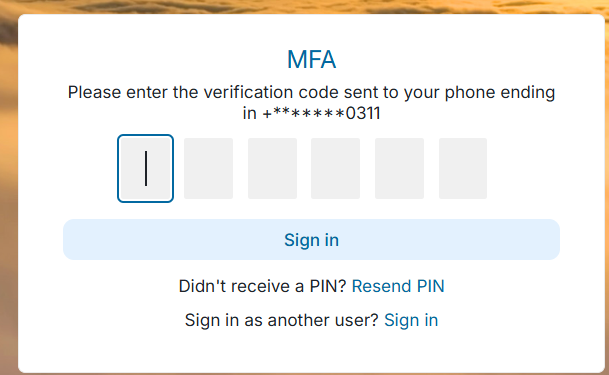
When FutureVault sends your verification code by text message, the sign-in screen now shows the last digits of the phone number it was sent to, for example: “Please enter the verification code sent to your phone ending in •••• 1234.” This matches what the FutureVault mobile app already shows.
Why This Matters (Benefits)
- Know where to look: See right away which phone should receive your code.
- Spot an outdated number: Quickly tell if the code went to an old or incorrect phone number.
- Your privacy stays protected: Only the last digits are shown; your full number is never displayed.
What Problem It Solves
Previously, the web sign-in screen only said the code was sent “to your phone,” without saying which number. If a code didn’t arrive, it was hard to tell whether it had gone to an old number.
How It Works
At Sign-In
After you enter your email and password, the verification screen shows the masked phone number your code was sent to.
Resend PIN
If you select Resend PIN, the same masked number is shown.
Update Your Phone Number
If the number shown isn’t current, click your name in the top-right corner, select Account Settings, and go to the Security tab.
[Screenshot: the web verification screen showing “phone ending in •••• 1234”]
Note: This applies to both client and advisor sign-ins on the web. If the number can’t be displayed, you’ll see the standard message instead.