Two new enhancements help your organization give every vault a consistent look:
A default folder view (Icon, List or Tile) can now be set for all vaults.
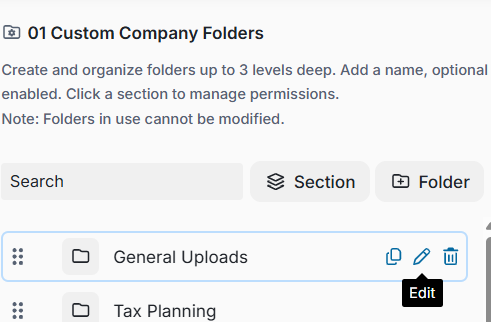
Administrators can now edit the icons of level 1 and level 2 company folders in Template Management, with changes applied to every vault using that template.
Why This Matters (Benefits)
A consistent experience: Current and new vaults start with the same folder view.
Users stay in control: Each user can still switch to the view they prefer.
Easier branding and navigation: Folder icons help users recognize key folders at a glance.
Update once, apply everywhere: Icon changes made in a template are applied to the matching folders in all vaults using that template.
What Problem It Solves
Organizations that wanted every vault to look the same had no way to set a different starting folder view. Updating company folder icons also required changes vault by vault. These enhancements make both changes possible from a single place.
What's New
Default Folder View
A default folder view can now be defined for all vaults in your organization. The available views are:
Icon View (default)
List View
Tile View
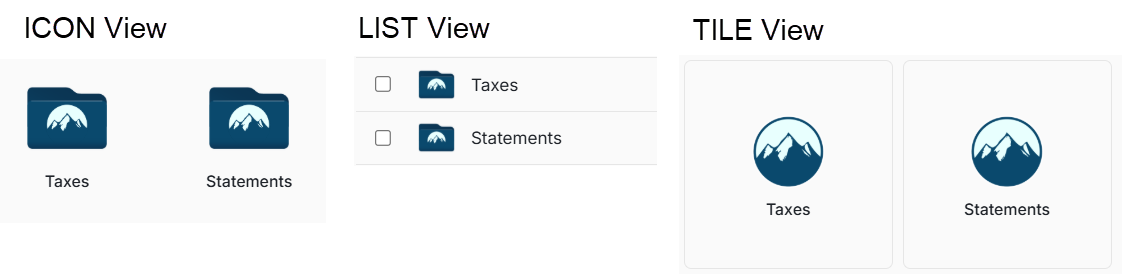
When the default is changed, all current and future vaults update to the new view. Users can still change their own view after signing in.
To change your organization's default folder view, contact your FutureVault Customer Success representative.
Edit Icons and Folder Names for Company Folders in Template Management
In Template Management, Administrators can now edit folder names and change icons for company folders.
When you update a folder under 01 Custom Company Folders and click Save, the folder changes update in all vaults with this template assigned.