
We’ve enhanced the Notification Preferences experience in Account Settings to make it easier for all user types to understand, manage, and save their notification preferences.
What’s Changed?
The Notifications tab now provides clearer visual cues and instructions when managing email and in-app notification preferences.
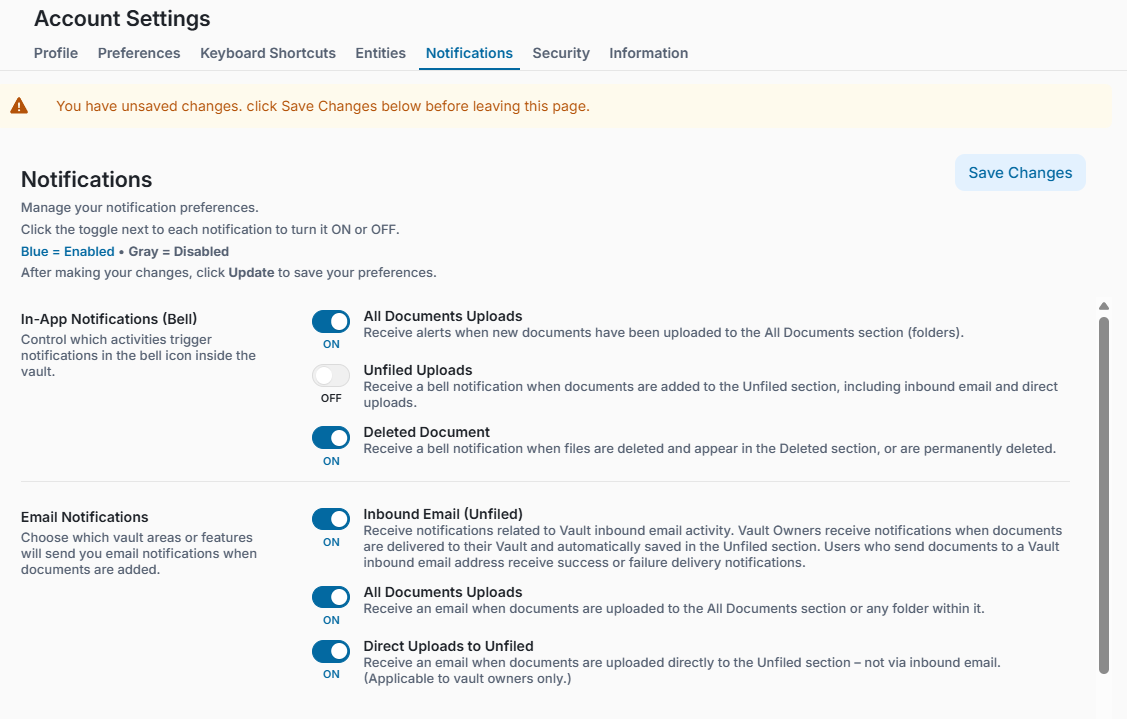
Clear ON/OFF Toggle Status
Notification settings now provide a more obvious visual indication of their current status:
- Blue = Enabled (ON)
- Gray = Disabled (OFF)
- Users can simply click the toggle next to a notification to turn it ON or OFF.
This makes it easier to identify which notifications are currently enabled and understand that each setting can be changed directly.
More Guidance for Managing Preferences
Additional instructions have been added directly to the Notifications page to help users understand how to update their preferences.
Users are guided to select the notifications they want to receive and reminded that their changes must be saved before leaving the page.
Unsaved Changes Reminder
When a user changes a notification preference, the page now clearly indicates that there are unsaved changes and prompts the user to select Save Changes.
This helps prevent users from assuming their updated preferences have already been applied.
Alert Before Leaving Without Saving
If a user attempts to leave the page after changing a notification preference without saving, they will receive an alert reminding them that their changes have not been saved.
The user can then return to the page and save their updated preferences before navigating away.
Why This Matters
Previously, it was not always clear whether a notification preference was ON or OFF, whether the toggle could be clicked to change the setting, or that an update still needed to be saved.
These enhancements provide clearer guidance throughout the process and help ensure users can confidently manage their notification preferences without accidentally losing their changes.
How to Update Your Notification Preferences
- Navigate to Account Settings.
- Select the Notifications tab.
- Review your available In-App Notifications and Email Notifications.
- Click the applicable toggle to turn a notification ON or OFF.
- Review the visual status:
- Blue = ON
- Gray = OFF
- Select Save Changes to apply your updated preferences.
Important: If you make changes and attempt to leave the page without saving, you will be reminded that you have unsaved changes.