
Users with sharing permissions can now generate Share Links to share entire folders that stay up to date automatically. Any added or removed files, new subfolders, or file name changes are reflected instantly in the same link—no need to resend it. Users can also choose how content is displayed and still share individual files when more restricted access is required.
Why This Matters (Benefits)
- Expanded access to sharing tools: All users with sharing permissions can now create Share Links
- Eliminates repetitive work: No need to resend links when documents change
- Ensures accuracy: Recipients always access the most current files
- Improves client experience: One consistent link for ongoing sharing
- Flexible display options: Control how recipients view shared content
What Problem It Solves
Previously, sharing required sending individual files or static selections. Any updates, such as adding new documents or renaming files, require updating the link or generating and sending a new link. Additionally, sharing capabilities were more limited across user roles. This created inefficiencies and inconsistency in how documents were shared.
What’s New
1. Share Entire Folders with Live Updates
Users can now share a full folder using one link that dynamically reflects:
- Newly added files
- Removed files
- Newly added subfolders
- File name changes
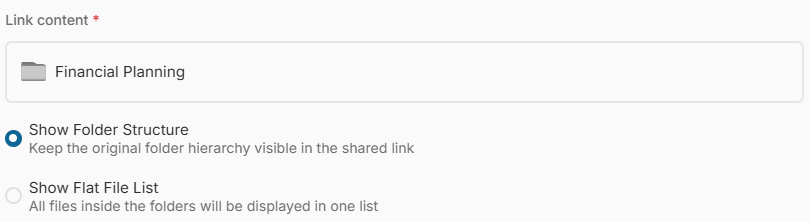
2. Choose How Content is Displayed
When sharing a folder, users can select:
- Show Folder Structure: Displays folders and subfolders
- Show Flat File List: Displays all files in a simplified list
3. Maintain Flexibility with File-Level Sharing
Users can still:
- Share individual files only
- Share selected content instead of full folders
- Display options won't be available when selecting only files
How It Works
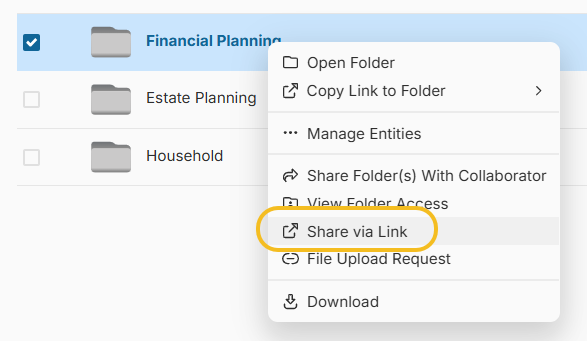
- Navigate to the folder
- Click Share via Link
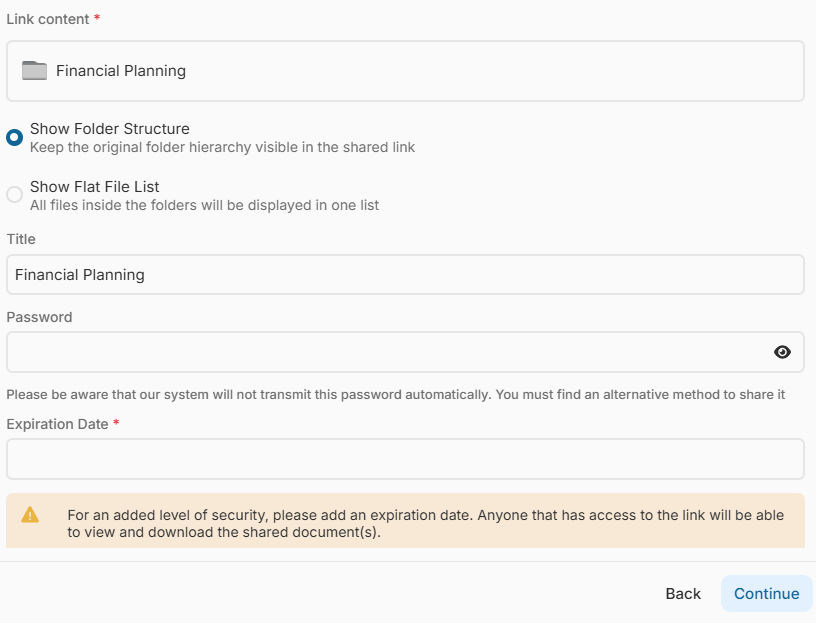
- Confirm link content.
- Choose display mode:
- Full structure
- Flat list
- Add a Name to the link
- Add a password or Expiration link
- Generate and send the link
Important Notes
- If you need to change the link content at the moment of creation, click 'Back' and select the correct folder(s) / file(s).
- Share Links are available only to users with sharing permissions enabled
- The same link updates automatically as folder content changes
- Renamed files are reflected immediately in the shared view
- Share Links can be edited or revoked at any time, inside the Share tab.