
We’ve introduced a new Document Preview preference under Account Settings > Preferences, giving you more control over how your workspace behaves when viewing documents. This enhancement lets you tailor the visibility of your side panels for a cleaner, more focused preview experience.
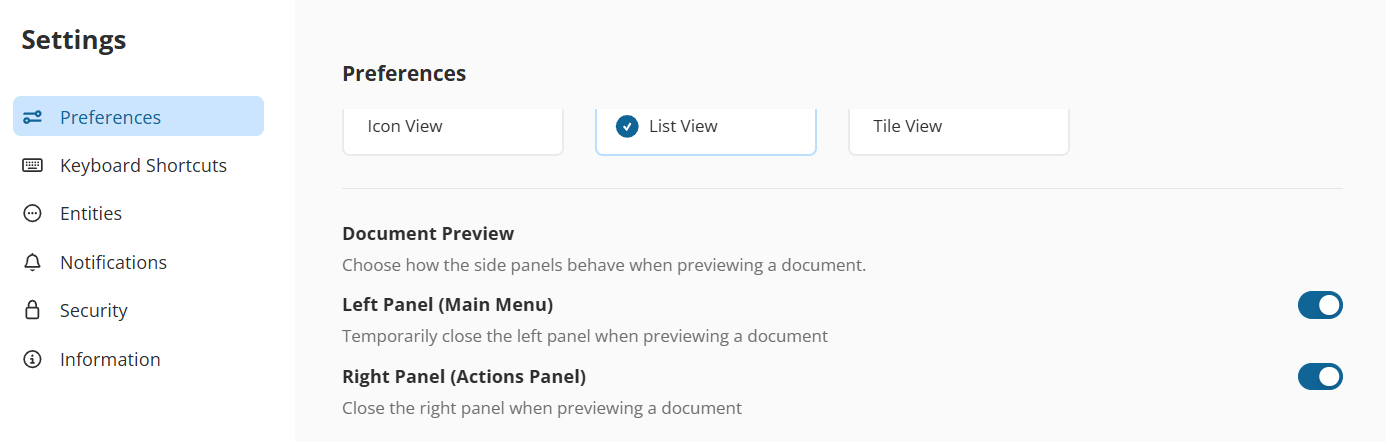
Document Preview Settings
Choose how the side panels behave when previewing a document:
Left Panel (Main Menu)
Temporarily hide the left panel when previewing a document to maximize screen space.
Right Panel (Actions Panel)
Automatically hide the right panel when opening a file.
When these toggles are ON, the panel will close automatically, but you can still manually expand it at any time if needed.
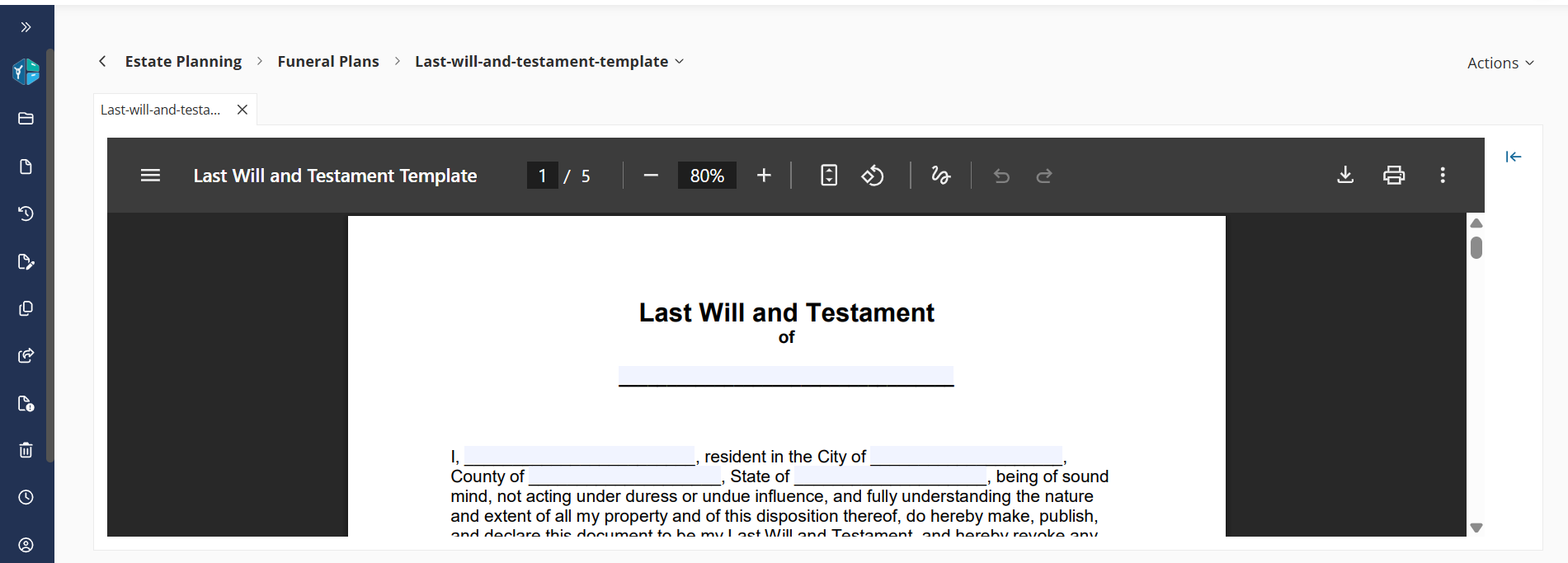
These new settings give you more flexibility and help reduce visual clutter when working with documents—especially helpful for smaller screens or when reviewing content in detail.
If you have questions or feedback, we’d love to hear from you!