
Uploading a document to your vault is quick and easy. The fastest way is to drag and drop your files directly into a folder.
Before You Start
- Open the vault and navigate to the folder where you want to upload your file
- Make sure you are inside a subfolder (you cannot upload directly to the top-level folder in most cases)
Option 1: Drag & Drop (Recommended)
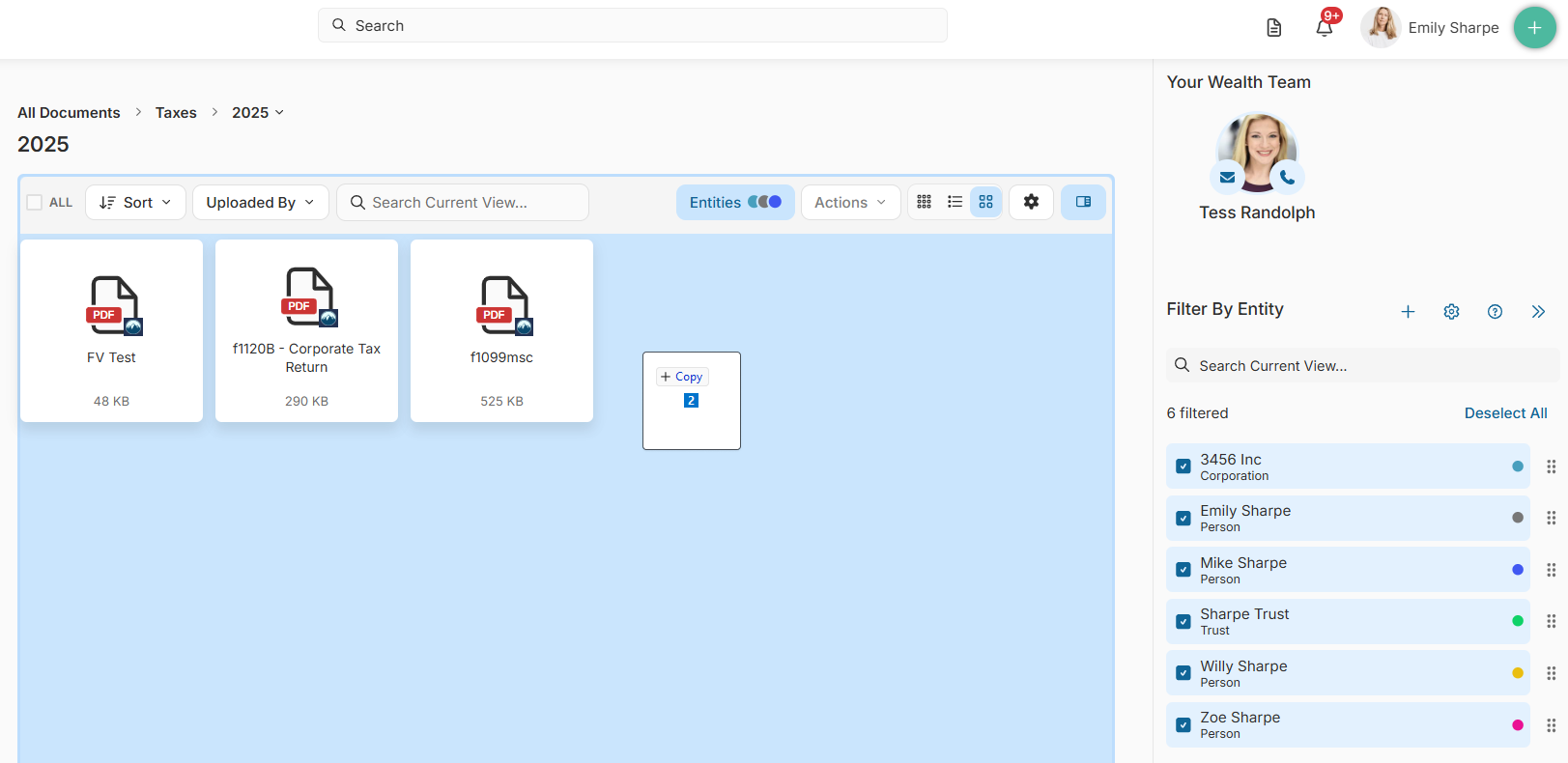
- Open the folder where you want to upload your file
- Drag your file from your computer
- Drop it into the vault
Option 2: Upload Button
- Open the folder where you want to upload your file
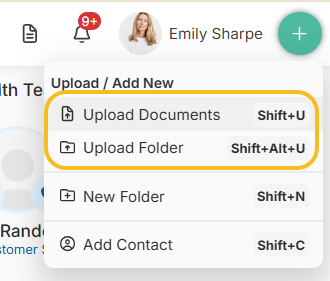
- Click the Upload button (top right)
- Choose 'Upload Documents' or 'Upload Folder'
- Select your file or folder
- Click Open
✅ Your file will be uploaded to that folder or it will create the folder and upload all the files depending on the option you chose
After you drag and drop or select a file for upload, you may see a pop-up to control how entities are assigned to your document.
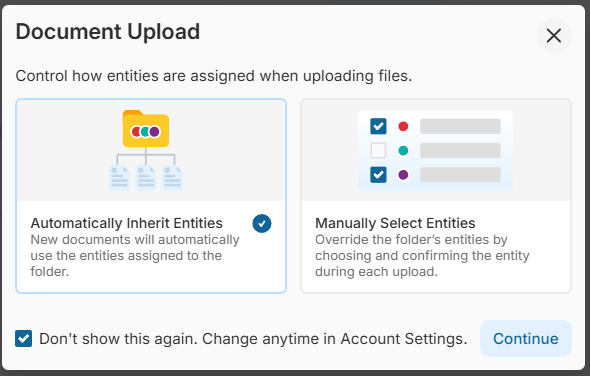
Choose one of the following options:
Automatically Inherit Entities (Recommended)
- Your file will automatically use the same entities as the folder
- Best option if you are not actively using the Entities feature
- Faster and requires no additional steps
Manually Select Entities
- Allows you to choose specific entities for the file
- You will be prompted to confirm your selection before the upload completes
- Useful when documents need to be tagged differently than the folder
Tip: If you're unsure, use “Automatically Inherit Entities” for a faster and more consistent experience.
Optional Setting
- You can select “Don’t show this again” to skip this step in the future
- This preference can be updated anytime in Account Settings
Other Ways to Upload
You can also upload files using:
- Mobile App (upload, scan, or take a photo)
- Email to Vault (Inbound Email) (files go to Unfiled)