
Managing your account security helps protect your data and control how your account is accessed. From the Security tab in Account Settings, you can review active sessions, update your login email and password, enable Multi-Factor Authentication (MFA), and manage the emails that can send files to a vault's inbound email.
Note: Some options may vary depending on your role and permissions.
SSO Notice: If your account is managed through Single Sign-On (SSO), certain options such as changing your email, password, or MFA settings may not be visible, as they are managed by your organization’s identity provider.
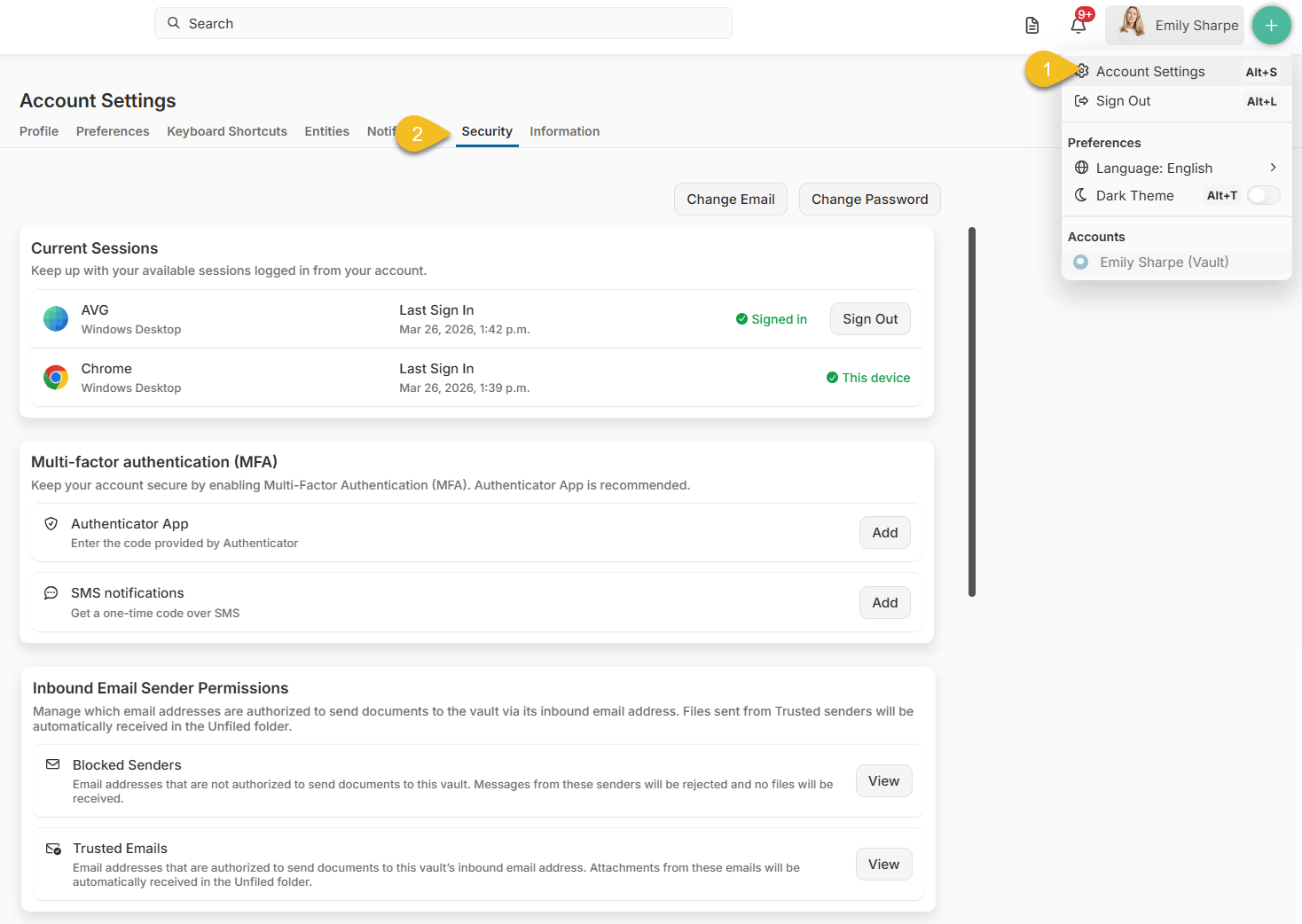
How to access your Security Settings
For Vault Owners
- Click your name in the top-right corner.
- Select Account Settings
- Navigate to the Security tab
For Co-Owners and Collaborators
If you do not see your name in the top-right corner, you are likely inside a vault.
- Click Return to Portal (top-left corner)
- Once you see your name in the top-right corner, click it
- Select Account Settings
- Navigate to the Security tab
Sections inside the Security Settings
- 1. Update Your Credentials
- 2. Review and Manage Active Sessions
- 3. Enable Multi-Factor Authentication (MFA)
- 4. Manage Inbound Email Sender List
1. Update Your Credentials
At the top of the Security page, you can:
- Change Email → Update your login email
- Change Password → Strengthen account security
SSO Note: These options will not appear if your account is managed via SSO. In that case, email and password changes must be done through your SSO provider.
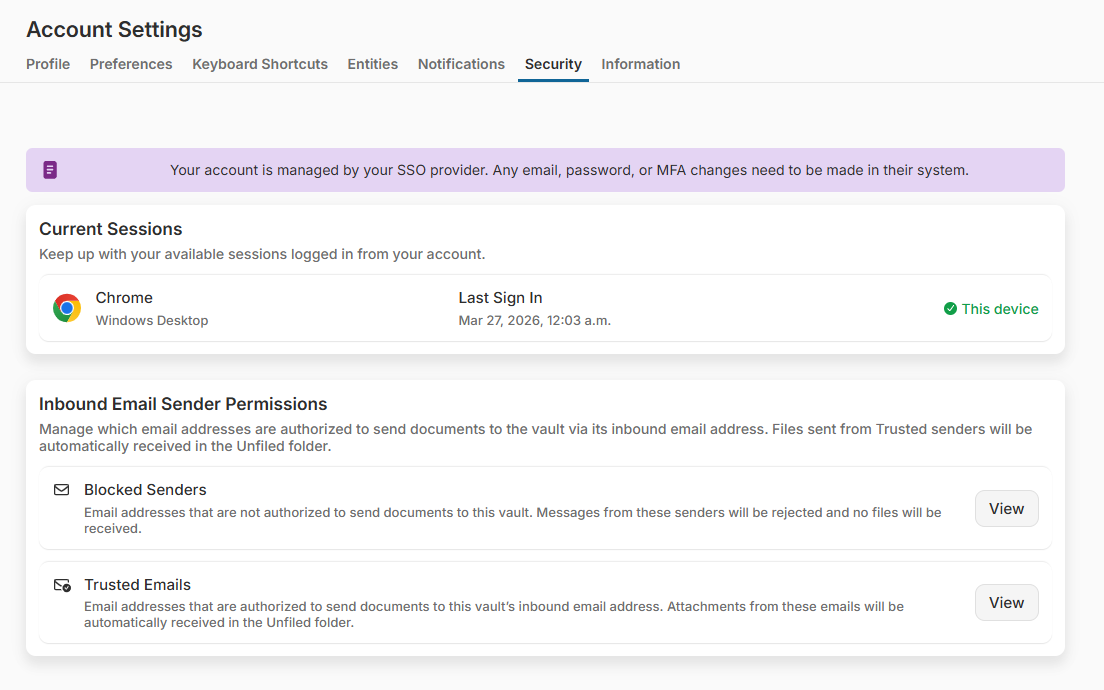
2. Review and Manage Active Sessions
The Current Sessions section lists all devices currently logged in to your account.
What you can do:
- View device type (e.g., Chrome, Windows Desktop)
- See the last sign-in time
- Identify your current device
- Sign out of any session remotely
When to use this:
- You logged in on a shared/public device
- You notice unfamiliar activity
- You want to force logout across devices
3. Enable Multi-Factor Authentication (MFA)
Enabling MFA adds an extra layer of protection to your account. You can enable both options:
- Authenticator App (Recommended)
Use apps like Google Authenticator or Microsoft Authenticator to generate secure codes - SMS Notifications
Receive a one-time code via text message (must be verified first)
How to enable:
- Click Add next to your preferred method
- Follow the setup instructions
- Confirm with the verification code
SSO Note: If your organization enforces MFA through SSO, these options may not be available here. MFA will be managed externally.
4. Manage Inbound Email Sender List
This section controls who can send documents into your vault via its inbound email address.
Files sent via email are automatically uploaded to the Unfiled folder.
Blocked Senders
- Emails from these addresses are rejected
- No files will be received
Trusted Emails
- Authorized senders who can email documents into the vault
- Attachments are automatically accepted and uploaded
How to manage:
- Click View next to either section
- Add or remove email addresses as needed
Best practice:
- Add only known and trusted senders
- Use the blocked list to prevent unauthorized uploads