
Multi-Factor Authentication (MFA) adds an extra layer of security to your account by requiring a second verification step in addition to your password. This helps protect sensitive documents and information stored in your vault.
Before You Start
- You must have access to your Account Settings
- A valid mobile number (for SMS) or an Authenticator app is required
How MFA Works
Once MFA is enabled, you will be required to enter a one-time verification code each time you log in.
You can choose to receive this code through:
- SMS (text message) sent to your registered mobile number
- Authenticator app (e.g., Google Authenticator, Microsoft Authenticator)
Each code is unique and expires after a short period for security purposes.
Turn ON Multi-Factor Authentication in Settings
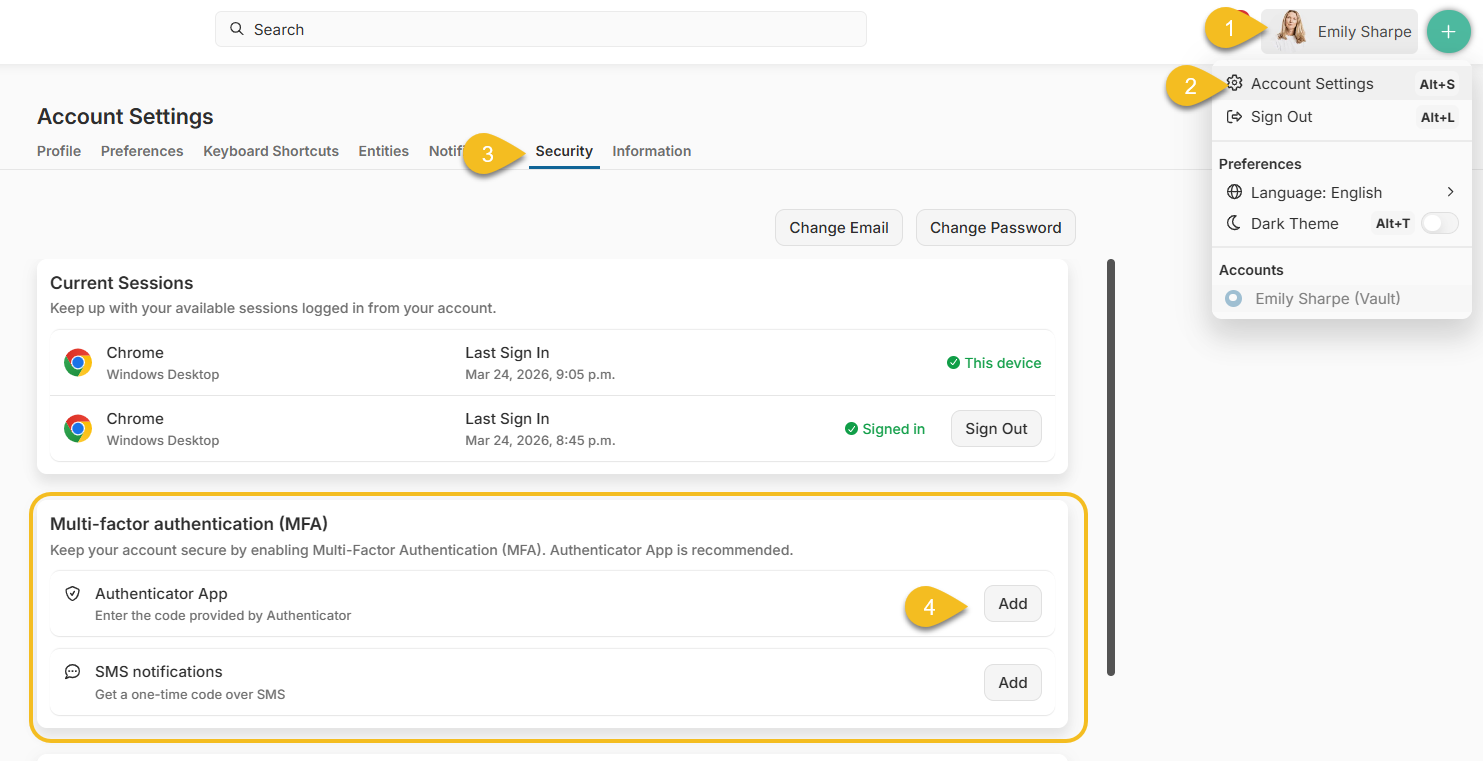
- Click your name in the top-right corner
- Select Account Settings
- Go to the Security tab
- In the Multi-Factor Authentication (MFA) section, choose your preferred method:
- SMS Notifications
- Authenticator App
- Follow the prompts to verify your method:
- Enter the PIN sent via SMS, or
- Scan the QR code and enter the code from your Authenticator app
- Once confirmed, MFA will be successfully enabled
Using Multiple MFA Methods
You can enable more than one MFA method for flexibility.
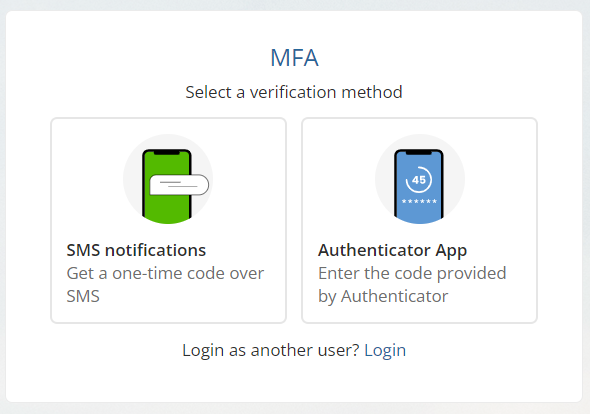
When multiple methods are enabled, you will see an option to define how your verification method is selected at login:
- Choose each time I log in (Recommended)
- Set a default method
Recommendation! Select 'Choose each time Sign in', so you can decide which method to use every time you access your account.
Reduce Login Prompts with “Remember Me”
To simplify your login experience, you can select “Remember Me” on the login page after entering your email and password.
How It Works
- You will complete the MFA once
- Your device will be remembered for 30 days
- During this time, you won’t be asked to enter a verification code on that device and browser
When You’ll Be Asked for MFA Again
You will be prompted to enter your verification code again if:
- You sign out manually
- Your session is terminated or forced to sign out
- You log in from a different device or browser
- You clear cache or cookies on the browser
- The 30-day period expires
Important
- This setting applies only to the specific device and browser used
- Avoid enabling this option on shared or public devices
Troubleshooting
- Didn’t receive your code?
- Check your mobile signal or try resending the code
- Ensure your Authenticator app is synced correctly
- Lost access to your MFA method?
- Contact your administrator for assistance